Quick Start
Steps
Follow these simple steps to get started with ChatGPT Automator:
-
Open ChatGPT in your Chrome browser by visiting chatgpt.com.
![Visiting [chatgpt.com]](/img/chrome_chatgpt_visit.png)
-
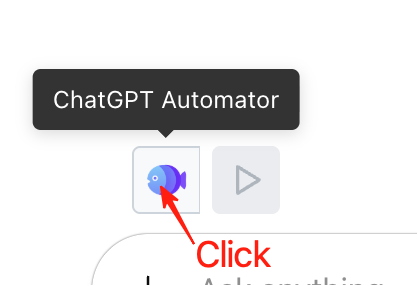
Click the ChatGPT Automator icon in your Chrome toolbar to open the extension.
-
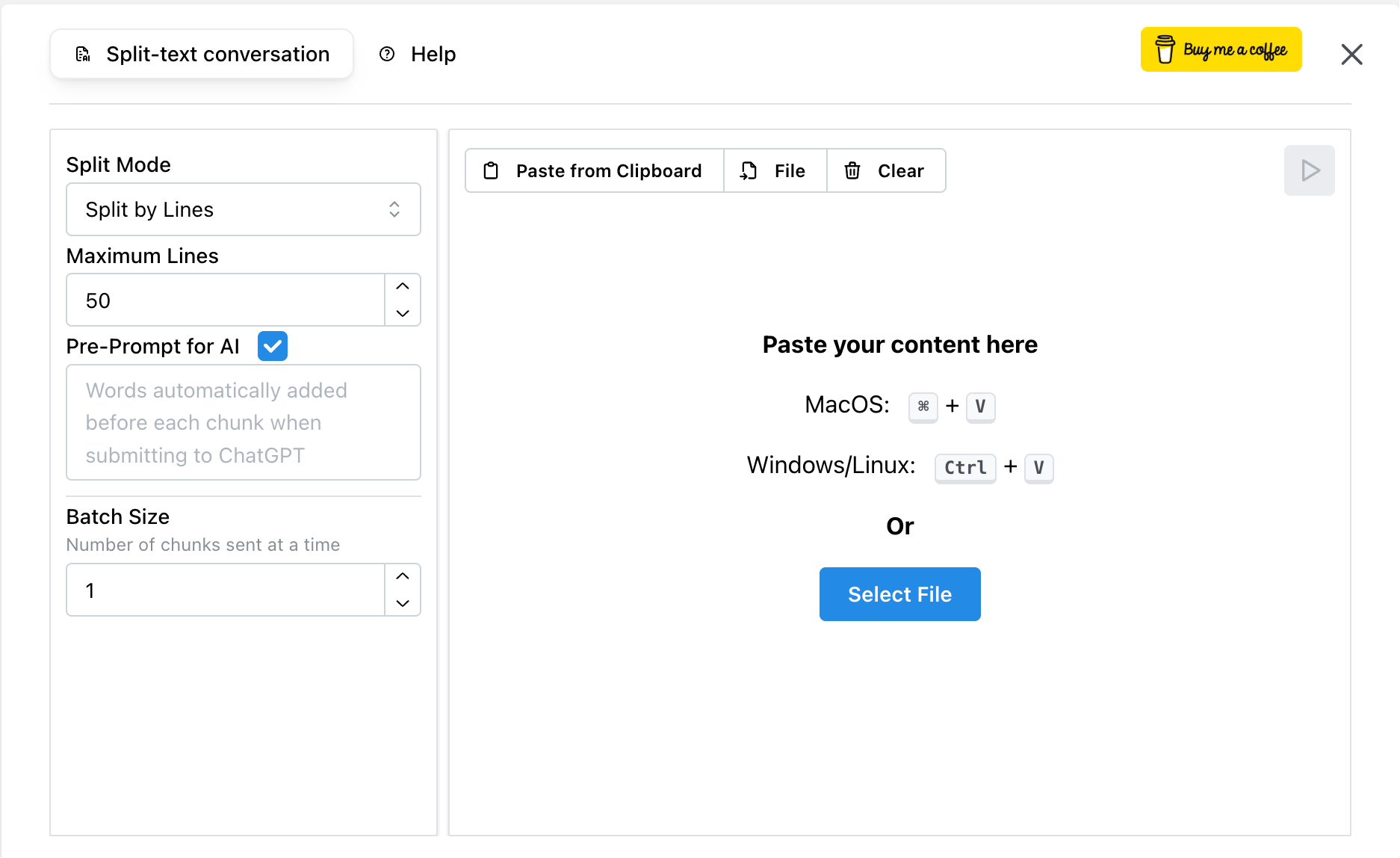
Paste your long text into the Automator input area.
-
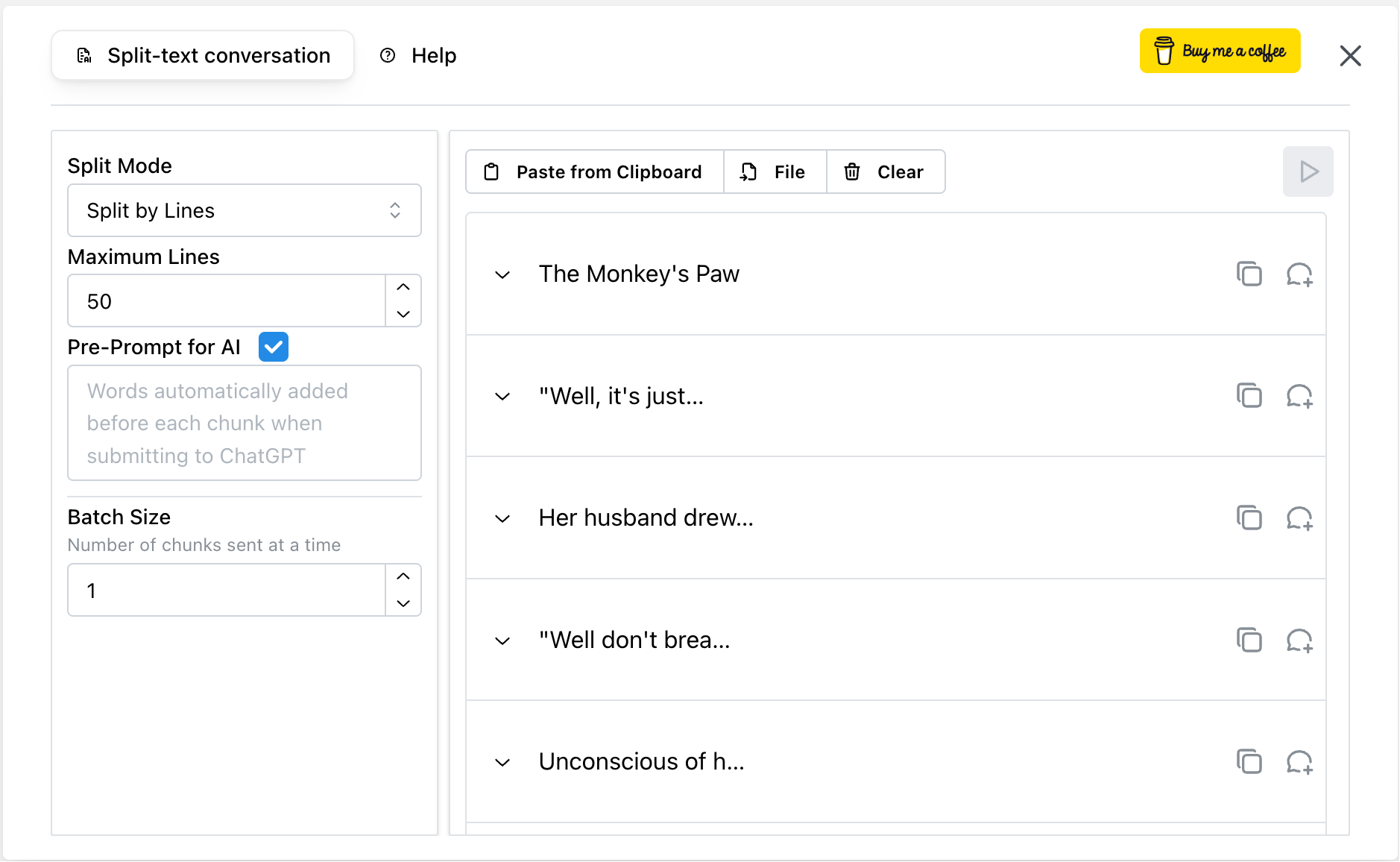
The extension will split your text into smaller chunks automatically.
-
Load from File
In addition to pasting text, you can also load long texts from files.
Currently supported file types include: .txt, .md, .csv, .log, .json, .xml, .yaml, .yml
- Simply click Select File in the Automator input area.
- The extension will read the content and split it according to your configured settings.
Future Plans: More file types will be supported, and eventually the extension may pull data automatically from certain sources, further streamlining the process.
-
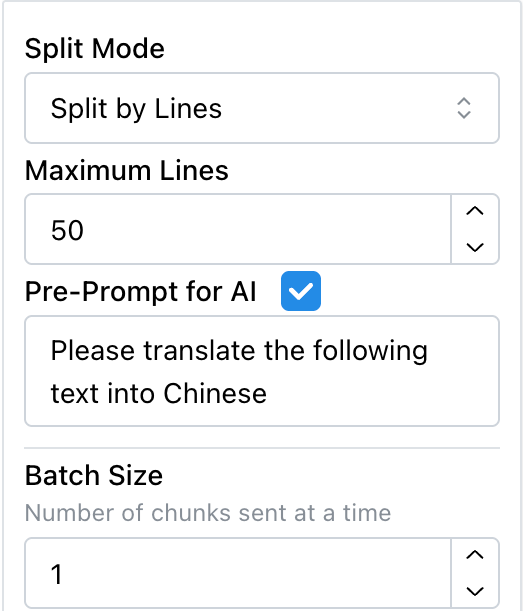
(Optional) Enter a pre-prompt — this text will be added before each chunk, giving ChatGPT consistent context or instructions (e.g., “Please translate the following text into Chinese:”).
-
Click Start to let the tool submit each chunk to ChatGPT one by one.
✨ Tip:
You can customize how text is split and sent in the Options menu:
- Split by Characters — break text by character count (default: 2000 chars per chunk).
- Split by Lines — break text by line count (default: 10 lines per chunk, and the default mode).
- Split by Text Rules — define custom rules for splitting:
- Use plain markers (e.g.,
Part*to match Part I, Part II...). - Use regular expressions (e.g.,
/Part\s\w+/). - Split by Markdown heading levels.
- Use plain markers (e.g.,
Additionally, you can set Batch Size:
- Default =
1: send your pre-prompt + one chunk at a time. - Example =
10: send your pre-prompt + 10 chunks together.
This flexibility lets you handle anything from code logs to book-length documents without losing structure.
Example workflow
For this example, we will use the short story The Monkey's Paw as our input text.
You can copy the text from the website and paste it into ChatGPT Automator to see how the extension splits and sends it automatically.
Case 1: Quick split by characters
- Paste a 10,000-character article into the input box.
- Choose Split by Characters, set Maximum Characters = 2000.
- Click Start. The article will be delivered in five clean parts automatically.
Case 2: Structured split by rules
- Paste a Markdown document with multiple sections (e.g.,
# Part I,# Part II). - Choose Split by Text Rules, select Markdown heading as the rule.
- Set Batch Size = 2. Each prompt will include your pre-prompt + 2 sections at once.
When all chunks are sent, you can continue chatting with ChatGPT as usual.
During Run
Once the automation starts, you will see additional controls appear next to the ChatGPT Automator icon in your Chrome toolbar:

- ⏸ Pause – temporarily stop sending chunks. You can resume at any time.
- ⏹ Stop – end the current automation session immediately.
- 📄 Preview – the extension shows the content of the next batch that will be sent to ChatGPT, so you always know what’s coming.
This real-time status view helps you stay in control of the process while the extension works in the background.